
QR Payments Integration
QR payments enable transaction execution through a QR code in eKasa.
Links
- PDF Version
- QR payment confirmation program - Web app used to simulate a bank in an integration environment.
- QR payment status verification - Web app used to verify the status of a QR payment
Integration IBAN: SK4509000000000286241634 — account owner: VAROS TRADE s.r.o.
There are two main integration approaches:
Optimal Integration
With this payment method, the payment is first executed via a QR code using the QVERKO request. Then, based on the result from the notification server, the receipt is either printed, or the payment is made using a different tender type. If the request result does not confirm the payment, you can request a notification within 2 hours using the NOTIFY request.
Configuration Requirements
- In this case, the payment tender used for QR code payment must not be selected in the eKasa configuration so our application can intercept it itself.
Timeout Settings
QR payment requires waiting for confirmation from the notification server. Set a sufficiently long timeout:
FT5000
Only if communicating via the print manager, set in TM5000:
- Tab Print Receive → Time Info = 15 000 ms
FT4000
Set timeouts in TM5000WIN:
- Tab Print Receive → Time Info = 15 000 ms
- Tab QR code → Bank Timeout = 60 000 ms
The timeout covers the entire flow: obtaining the identifier, scanning the QR with a mobile, confirming in the banking app, and returning the result.
QR Transaction Identifier - QrId
We recommend extending the database with a QrId column – a unique transaction identifier from the FS notification server.
- The QrId identifier should also be listed on the bank statement to identify the payment
- The QrId identifier is used when filing complaints or searching for a payment
- Example:
QR-ab29e346f1d841c8a95a63d857490818
Transaction Flow
-
The sales application requests QR payment execution from eKasa before printing the receipt.
-
eKasa displays / prints the QR code for scanning with a mobile device to perform the payment.
-
The sales application waits for a response from eKasa.
- Note: The transaction executes a sequence of actions and a longer response time should be expected:
- Obtain and display the QR payment identifier
- Scan the QR code with a mobile phone
- Confirm the payment in the banking application
- Transfer funds from the buyer’s bank to the seller’s bank
- Payment verification by the bank
- Payment verification by eKasa via the notification server
- Send the response to the PC
- Note: The transaction executes a sequence of actions and a longer response time should be expected:
-
After payment verification, the sales application issues a receipt with the QR payment method showing the paid amount. The recorded amount is used for calculating and printing subsequent closures.
-
If payment verification fails, the sales application should offer an alternative payment method.
| Sales Application | Mobile Device | Banking Application |
|---|---|---|
Request QR Payment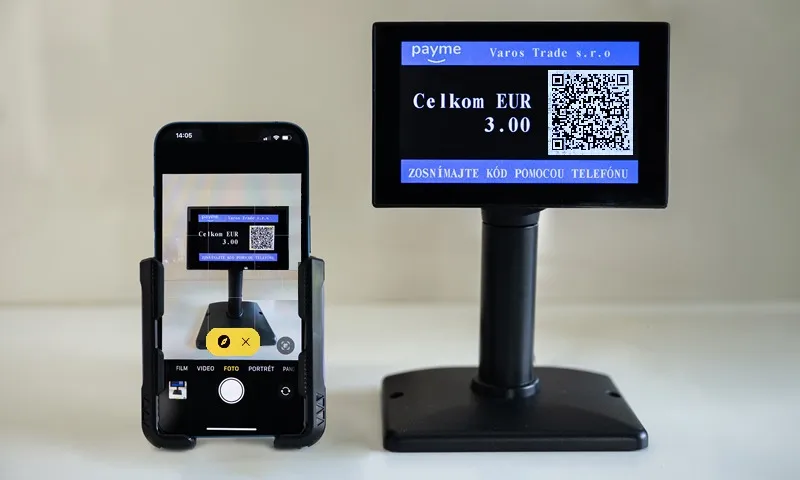 eKASA - QR code display | Photograph QR Code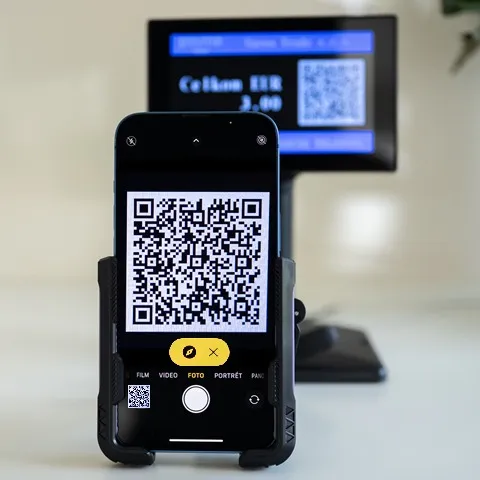 Click the link to launch banking application | Display Payment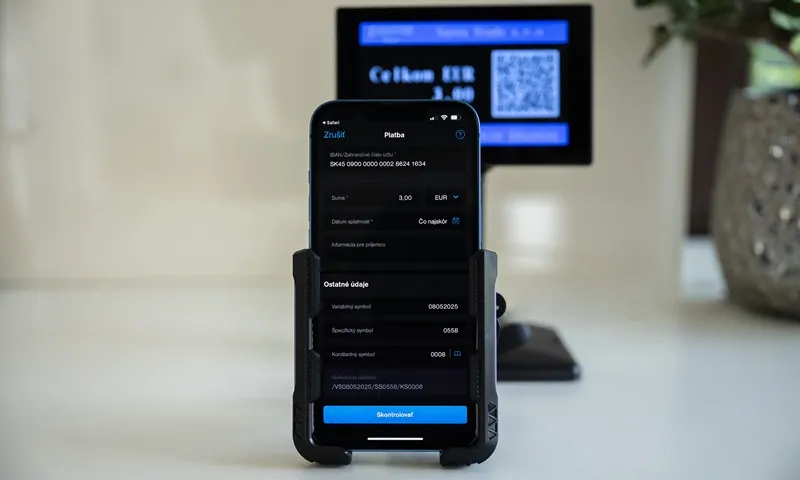 Buyer - verify and confirm payment |
Simple Integration
This method can be used for sales applications with minimal program changes. The response wait time is extended, and the QR payment is assigned a corresponding tender in the configuration.
Configuration Requirements
- The payment method used for QR payment must be selected in the eKasa configuration.
Timeout Settings
FT5000
Only if communicating via the print manager, set in TM5000:
- Tab Print Receive → Time Info = 90 000 ms
FT4000
Set timeouts in TM5000WIN:
- Tab Print Receive → Time Info = 90 000 ms
- Tab QR code → Bank Timeout = 60 000 ms (same as optimal integration)
Advantages and Disadvantages
- Advantage: Minimal program modification
- Disadvantage: The receipt is sent first, and the sales application learns whether the payment was successful afterwards.
Transaction Flow
- The sales application sends a receipt to the printer, where it includes the QR payment value in the selected payment method.
- If the QR payment method is present in the receipt, eKasa displays / prints the QR code for scanning with a mobile device.
- eKasa verifies the payment:
- If verification is successful → the cash register receipt is printed
- If payment verification fails → an error message with error number is displayed / printed
- Note: Expect longer response times during verification
- The sales application reads the receipt information:
ESC IorESC ! I - If the receipt ends with an error, the sales application should issue a new receipt and offer an alternative payment method.
Note (FT4000): With simple integration and a correctly configured TM5000WIN, the bank can also be simulated directly through the print manager interface without an external application.
QR Payment Types
Varos eKasa supports the following QR payment types:
QVERKO
This payment type is used to execute immediate receipt payment or invoice payment via QR code under the new cash register law. Before printing the receipt, the sales application requests the QR payment through eKasa using the QVERKO command. Based on the request, eKasa displays/prints a prompt to perform the QR payment and waits for a defined time for payment confirmation from the Payment Notifier. eKasa automatically returns information about the payment. If the response is positive, the sales application issues the receipt. If the payment is not completed in time, the sales application can verify the transaction with the NOTIFY request using the original QR identifier or use another payment tender.
- Payment amount is limited by the limit set by the buyer in their bank
- Executed payment is considered a non-cash payment method for the receipt
Legal Restrictions on Receipt:
| Law | Limit |
|---|---|
| Law on Limitation of Cash Payments 394/2012 Z.z. | max. €5,000 |
| Law on Value Added Tax 222/2004 Z.z. (VAT Deduction) | max. €400 |
| QR Code Payment | no limit |
| Card Payment | authorized card limit |
PAYME
Immediate non-cash invoice payment. This payment type is not subject to the cash register law and no cash register receipt is printed. It is used for quick invoice payment. Scanning the QR code lets the mobile banking application auto-fill invoice data needed for payment — seller name and account, amount due, VS, KS, SS.
- Information about the executed payment is sent to the mobile device of the account holder for the given IBAN
- eKasa does not receive notification about the payment
- Payment amount is limited only by the bank transfer limit set by the buyer in their bank
QRCODE
Request a QR payment identifier for a specific eKasa from the API server and then generate a payme string that contains all information required to perform the QR payment. The sales application can use the string to display the QR payment on a computer monitor or other device.
- The sales application can use the generated string for own QR code display on a computer monitor or self-service machine display
- After the payment is made via the mobile banking app, the NOTIFY request must be called to verify the QR payment execution by eKasa
NOTIFY
Verification of QR payment execution based on the QR identifier. Notification is possible for a maximum of 2 hours after the payment was made.
- Used to verify the status of executed QR payment
- Uses the transaction identifier QrId
⚠️ Important: The
Valuein the NOTIFY request must be exactly the same as when the QR code was created, because the payment checksum is verified.
DISPLAY
Customer display function – displays two-line text or any QR code on the display.
- Ability to use QR code, for example, to redirect to an e-shop or seller’s website
- This function does not return any JSON response – only confirmation is returned:
ACK NULL NULL - 0x06 0x00 0x00 - On error:
NAK - 0x15
Re-displaying a QR Code
If the customer did not scan the QR code in time, it can be shown again using a DISPLAY request populated with values from the previous QVERKO request. After the customer scans and confirms payment, NOTIFY must be called.
QR code validity is 2 hours from generation.
Input and Output Files
Input
blocek.txtOutput
info.txt
info.json
fm_sts.bin
info.txt vs info.json
| Field | info.txt | info.json |
|---|---|---|
| Receipt number | ✓ | ✓ |
| Receipt UID | ✓ | ✓ |
| Receipt status | ✓ | ✓ |
| Tax level turnover | 3 levels | all levels |
| Receipt type | – | ✓ |
| QR Id | – | ✓ |
Recommendation: After each receipt, read info.json and check:
- That the receipt number has incremented since the last one
- Receipt status
- Save the UID (unique receipt number assigned by the Financial Administration)
- Save the QR Id for potential complaints or payment verification
JSON API
The JSON interface contains two files:
- QR-REQUEST - Send a QR payment request
- QR-RESPOND - Response to request is returned automatically
QR-REQUEST
Send a QR payment request
- Syntax:
<ESC>QR-REQUEST<ESC>e
{
  "ReceiptFormat": "VAROS_JSON",
  "Version": "1.0.0",
  "ReceiptType": "QR",
  "type": "QVERKO",
  "Id": "PQR251200001",
  "QrId": "QR-ab29e346f1d841c8a95a63d857490818",
  "Line1": "Total EUR",
  "Line2": "     25.00",
  "Value": "25.00",
  "QrCode": {
    "data": "qrData",
    "printOnPrn": false,
    "showOnDsp": true,
    "timeout": 30
  },
  "Bank": {
    "VS": "202500053",
    "SS": "",
    "KS": "0008",
    "Msg": "Invoice Payment"
  }
}| Field | Description |
|---|---|
| ReceiptType | Internal designation of QR payment |
| type | Determines QR code type for display/print QVERKO - Receipt payment via QR code through FS Notifier PAYME - Direct payment via QR code using VS, KS, SS QRCODE - Only generates string displayed in QR code for own display by sales application NOTIFY - Verification of payment execution based on transaction identifier QrId DISPLAY - Displays Line1, Line2, and qrData on display screen |
| Id | Unique identifier of QR payment PQR+YY+MM+receipt sequence number. Programmer can also choose unique identifier Id maximum 15 characters |
| QrId | FS notification server transaction identifier. Based on QrId, payment verification can be requested up to 2 hours after execution.Type NOTIFY - Required field |
| Line1 | Text on first display line maximum 20 characters. Type QVERKO,PAYME - Line1 is automatically overwritten with text Total EUR |
| Line2 | Text on second display line maximum 20 characters. Type QVERKO,PAYME - Line2 is automatically overwritten with payment amount |
| Value | Payment amount for QR code |
| QrCode | Definition of string displayed in QR code |
| - data | String that represents QR code. Type QVERKO,PAYME - data is automatically calculated |
| - printOnPrn | Print QR code on eKasa.true - print QR code on eKasafalse - QR code is not printed |
| - showOnDsp | true - display QR code on connected customer displayfalse - QR code is not displayed |
| - timeout | QR code display time on display in seconds |
| Bank | Seller’s bank data; if data is not filled, automatically populated from eKasa configuration |
| - VS | Variable symbol |
| - SS | Specific symbol |
| - KS | Constant symbol |
| - Msg | Message for buyer |
The type variable in JSON format defines the meaning of the JSON command. Depending on the type variable, required variables follow the table below.
Legend:
1- variable must be filled0/1- variable is used if filled (if not specified and needed, populated from eKasa configuration)0- variable is not used during processing
| Variable | QVERKO | PAYME | QRCODE | NOTIFY | DISPLAY |
|---|---|---|---|---|---|
| ReceiptFormat | 1 | 1 | 1 | 1 | 1 |
| Version | 1 | 1 | 1 | 1 | 1 |
| ReceiptType | 1 | 1 | 1 | 1 | 1 |
| Id | 0/1 | 0/1 | 1 | 1 | 0 |
| QrId | 0 | 0 | 0 | 1 | 0 |
| Line1 | 0 | 0 | 0 | 0 | 0/1 |
| Line2 | 0 | 0 | 0 | 0 | 0/1 |
| Value | 1 | 1 | 1 | 1 | 0 |
| QrCode | |||||
| QrCode.data | 0 | 0 | 0 | 0 | 0/1 |
| QrCode.printOnPrn | 0/1 | 0/1 | 0 | 0 | 0 |
| QrCode.showOnDsp | 0/1 | 0/1 | 0 | 0 | 0 |
| QrCode.timeout | 0/1 | 0/1 | 0 | 0 | 0 |
| Bank | |||||
| Bank.IBAN | 0 | 0/1 | 0 | 0 | 0 |
| Bank.VS | 0 | 1 | 0 | 0 | 0 |
| Bank.SS | 0 | 0/1 | 0 | 0 | 0 |
| Bank.KS | 0 | 0/1 | 0 | 0 | 0 |
| Bank.Msg | 0/1 | 0/1 | 0/1 | 0 | 0 |
QR-RESPOND
Response to request is returned automatically
- Syntax:
ACK + response character count QR-RESPOND + QR-RESPOND response - Error state: On error,
NAK - 0x15is returned
{
  "ReceiptFormat": "VAROS_JSON",
  "Version": "1.0.0",
  "ReceiptType": "QR",
  "type": "QVERKO",
  "Id": "PQR251200001",
  "QrId": "QR-ab29e346f1d841c8a95a63d857490818",
  "QrCode": "https://payme.sk/?V=1&IBAN=SK4509000000000286241634&AM=25.00&CC=EUR&PI=%2FVS%2FSS%2FKS0008&MSG=Invoice+Payment&CN=Varos+Trade",
  "Value": "0.00",
  "Date": "2025-09-17",
  "Time": "15:30:55",
  "IBAN": "SK4509000000000286241634",
  "errCode": 1,
  "errMsg": "text description of error message"
}| Field | Description |
|---|---|
| Id | Unique identifier of QR payment PQR+YY+MM+receipt sequence number |
| QrId | FS notification server transaction identifier |
| QrCode | Generated string displayed in QR code (parameter added for own QR code display by sales application on computer display) |
| Value | Payment amount for QR code |
| Date | Transaction date YYYY-MM-DD |
| Time | Transaction time HH:MM:SS |
| IBAN | Seller’s IBAN |
| errCode | 1 - transaction completed successfully-1500 - Failed to obtain QrId-1501 - Notification server not responding-1502 - Failed to connect to notification server-1503 - Transaction rejected-1504 - Transaction not verified / notification server timeout-1505 - Checksum error in data received from NOP server |
| errMsg | Text description of error message |
Based on the type variable in the input JSON format, individual variables are returned in the JSON response according to the following table.
Legend:
1- variable will be populated0- variable will not be populated
| Variable | QVERKO | PAYME | QRCODE | NOTIFY | DISPLAY |
|---|---|---|---|---|---|
| ReceiptFormat | 1 | 1 | 1 | 1 | 0 |
| Version | 1 | 1 | 1 | 1 | 0 |
| ReceiptType | 1 | 1 | 1 | 1 | 0 |
| type | 1 | 1 | 1 | 1 | 0 |
| Id | 1 | 1 | 1 | 1 | 0 |
| QrId | 1 | 0 | 1 | 1 | 0 |
| QrCode | 0 | 0 | 1 | 0 | 0 |
| Value | 1 | 1 | 1 | 1 | 0 |
| Date | 1 | 0 | 0 | 1 | 0 |
| Time | 1 | 0 | 0 | 1 | 0 |
| IBAN | 1 | 1 | 1 | 1 | 0 |
| errCode | 1 | 0 | 1 | 1 | 0 |
| errMsg | 1 | 0 | 1 | 1 | 0 |
Examples
The following examples show JSON requests and responses for individual QR payment types.
QVERKO
QR-REQUEST
{
  "ReceiptFormat": "VAROS_JSON",
  "Version": "1.0.0",
  "ReceiptType": "QR",
  "type": "QVERKO",
  "Id": "PQR251200001",
  "Value": "25.00",
  "QrCode": {
    "printOnPrn": false,
    "showOnDsp": true,
    "timeout": 30
  },
  "Bank": {
    "Msg": "Cash register receipt 25123100069"
  }
}
QR-RESPOND
{
  "ReceiptFormat": "VAROS_JSON",
  "Version": "1.0.0",
  "ReceiptType": "QR",
  "type": "QVERKO",
  "Id": "PQR251200001",
  "QrId": "QR-ab29e346f1d841c8a95a63d857490818",
  "Value": "25.00",
  "Date": "2025-09-17",
  "Time": "15:30:55",
  "IBAN": "SK4509000000000286241634",
  "errCode": 1,
  "errMsg": "text description of error message"
}
PAYME
QR-REQUEST
{
  "ReceiptFormat": "VAROS_JSON",
  "Version": "1.0.0",
  "ReceiptType": "QR",
  "type": "PAYME",
  "Id": "PQR251200001",
  "Value": "25.00",
  "QrCode": {
    "printOnPrn": false,
    "showOnDsp": true,
    "timeout": 30
  },
  "Bank": {
    "IBAN": "SK4509000000000286241634",
    "VS": "202500053",
    "SS": "122025",
    "KS": "0008",
    "Msg": "Non-cash invoice payment"
  }
}
QR-RESPOND
{
  "ReceiptFormat": "VAROS_JSON",
  "Version": "1.0.0",
  "ReceiptType": "QR",
  "type": "PAYME",
  "Id": "PQR251200001",
  "Value": "15000.00",
  "IBAN": "SK4509000000000286241634"
}
QRCODE
QR-REQUEST
{
  "ReceiptFormat": "VAROS_JSON",
  "Version": "1.0.0",
  "ReceiptType": "QR",
  "type": "QRCODE",
  "Id": "PQR251200001",
  "Value": "25.00",
  "Bank": {
    "Msg": "Cash register receipt 25123100069"
  }
}
QR-RESPOND
{
  "ReceiptFormat": "VAROS_JSON",
  "Version": "1.0.0",
  "ReceiptType": "QR",
  "type": "QRCODE",
  "Id": "PQR251200001",
  "QrId": "QR-ab29e346f1d841c8a95a63d857490818",
  "QrCode": "https://payme.sk/?V=1&IBAN=SK4509000000000286241634&AM=25.00&CC=EUR&PI=%2FVS%2FSS%2FKS0008&MSG=Invoice+Payment&CN=Varos+Trade",
  "Value": "25.00",
  "IBAN": "SK4509000000000286241634",
  "errCode": 1,
  "errMsg": "text description of error message"
}
NOTIFY
QR-REQUEST
{
  "ReceiptFormat": "VAROS_JSON",
  "Version": "1.0.0",
  "ReceiptType": "QR",
  "type": "NOTIFY",
  "Id": "PQR251200001",
  "QrId": "QR-ab29e346f1d841c8a95a63d857490818",
  "Value": "25.00"
}
QR-RESPOND
{
  "ReceiptFormat": "VAROS_JSON",
  "Version": "1.0.0",
  "ReceiptType": "QR",
  "type": "NOTIFY",
  "Id": "PQR251200001",
  "QrId": "QR-ab29e346f1d841c8a95a63d857490818",
  "Value": "25.00",
  "Date": "2025-09-17",
  "Time": "15:30:55",
  "IBAN": "SK4509000000000286241634",
  "errCode": 1,
  "errMsg": "text description of error message"
}
DISPLAY
QR-REQUEST
{
  "ReceiptFormat": "VAROS_JSON",
  "Version": "1.0.0",
  "ReceiptType": "QR",
  "type": "DISPLAY",
  "Line1": "Action    ",
  "Line2": "offer     ",
  "QrCode": {
    "data": "https://www.varos.sk/EKASA_SK/2026_New_Legislative_Requirements.pdf",
    "showOnDsp": true,
    "timeout": 30
  }
}