

TM5000WIN Configuration
Launch
After installing the TM5000WIN print manager, basic configuration needs to be performed.
- Run TM5000WIN.exe
- After launch, the TM5000WIN icon will appear in the system tray next to the clock

- Right-click on the icon and select Configuration
- Log in to the application with username and password (default:
Admin/admin)
Cash Register System Connection
TM5000WIN print manager supports two ways of receiving input data from master application:
Files
When communicating via file, the print manager waits for incoming input data in the selected directory and file which it reads at set intervals.
Example: If the file name is blocek*, all files whose name begins with the string blocek will be received (file queue).
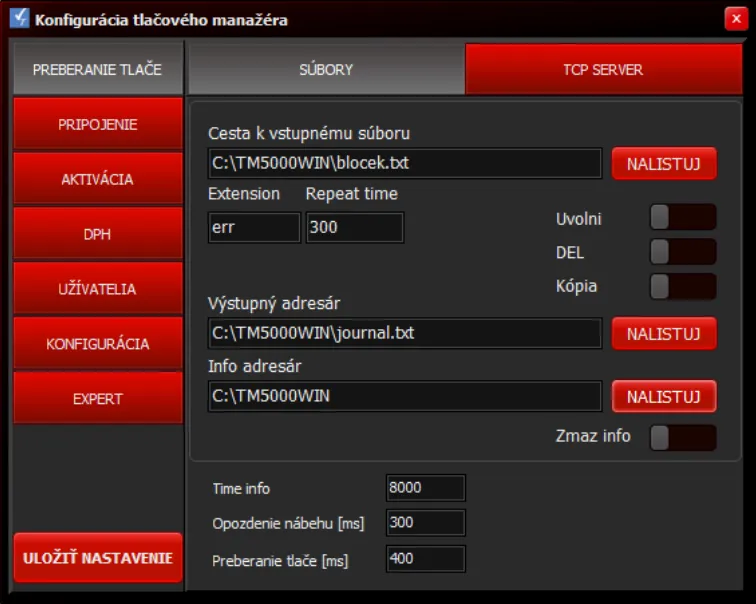
| Setting | Description |
|---|---|
| Input file path | Directory and file name received from master application |
| Browse | File search from directory |
| Extension | Extension of unsuccessfully processed file from queue |
| Repeat time | File reception interval from queue (in ms) |
| Release | Automatic release of communication port if not used |
| DEL | Delete input file when starting print manager |
| Copy | Saving text copy of documents to selected file |
| Output directory | Directory where text copies of documents are created |
| Info directory | Directory where info.txt information file about last document is created |
| Delete info | Delete info.txt file before processing document |
| Time info | Maximum waiting time for printer response (in ms) |
| Startup delay | Application startup delay, waiting for serial port creation on USB (in ms) |
| Print reception | Period of input file reception (in ms) |
| Save settings | Save configuration |
TCP Server
For TCP/IP communication, the print manager waits for input data from allowed IP addresses. Only one IP address can communicate at a time.
⚠️ Important: TM5000WIN.exe application needs to be granted an exception in Windows Firewall for TCP/IP communication.
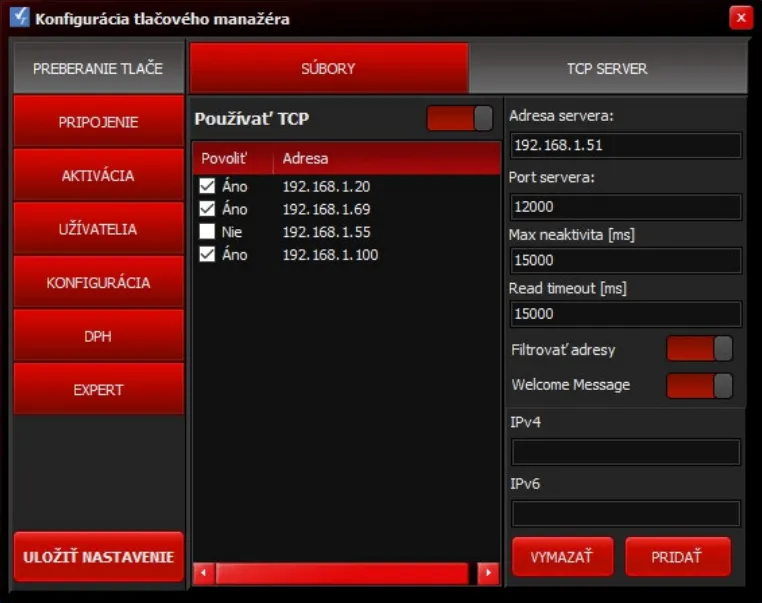
| Setting | Description |
|---|---|
| Use TCP | ON: communication via TCP socket / OFF: communication via file |
| Server address | IP address of computer where TM5000WIN is running |
| Server port | Port where connection requests are expected |
| Max inactivity | Inactivity time after which connection is terminated (in ms) |
| Read timeout | Response waiting time (in ms) |
| Filter addresses | Activation of access filtering by IP address |
| Welcome Message | Send welcome message after establishing connection |
| IPv4/IPv6 | Enter sender IP address |
| ADD | Add new sender IP address |
| Allow | Allow sender IP address |
| Address | List of allowed addresses |
| Save settings | Save configuration |
Printer Connection
Setting communication between PPEKK (TM5000WIN) and CHDU5000 in printer.
⚠️ Important: If CHDU is not detected and connected, options ACTIVATION, CONFIGURATION and VAT will be hidden.
To make them available:
- Set and test communication with CHDU
- Click SAVE SETTINGS
- Close configuration (click X)
- Restart print manager configuration
Related Documents
RS232
Configuration of serial port parameters for PPEKK ↔ CHDU5000 communication.
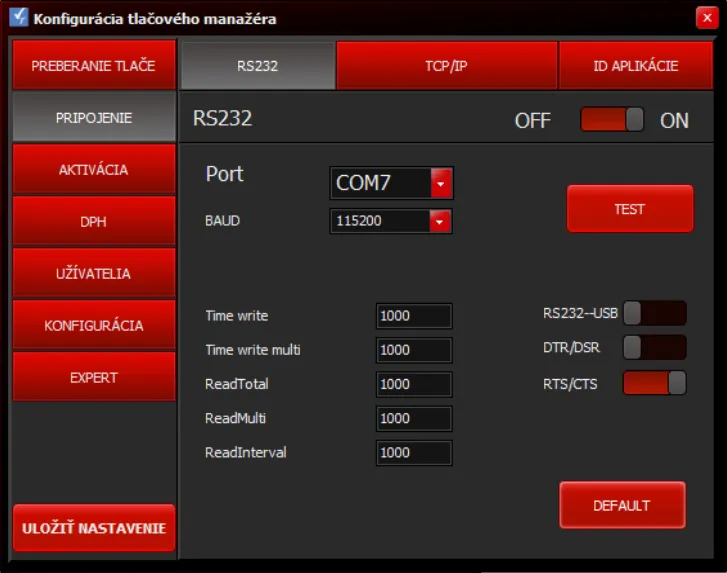
| Setting | Description |
|---|---|
| ON | Enable communication on RS232 port |
| Port | Select port where eKASA is connected (COM1, COM2, etc.) |
| BAUD | Communication speed between PPEKK and CHDU5000 (default: 115200 bps) |
| TEST | Test communication between PPEKK and CHDU5000 |
| RS232→USB | Set communication with printer via USB (ON/OFF) |
| DTR/DSR | Serial port communication control |
| RTS/CTS | Serial port communication control |
| Time write | Time constant when writing to serial port |
| Time write multi | Time constant when writing multiple data to serial port |
| ReadTotal | Time constant when reading from serial port (total time) |
| ReadMulti | Time constant when reading multiple data from serial port |
| ReadInterval | Time interval between reads from serial port |
| Save settings | Save configuration |
TCP/IP
TCP/IP communication configuration with printer (used with LAN - RS232 converters, e.g. MOXA).
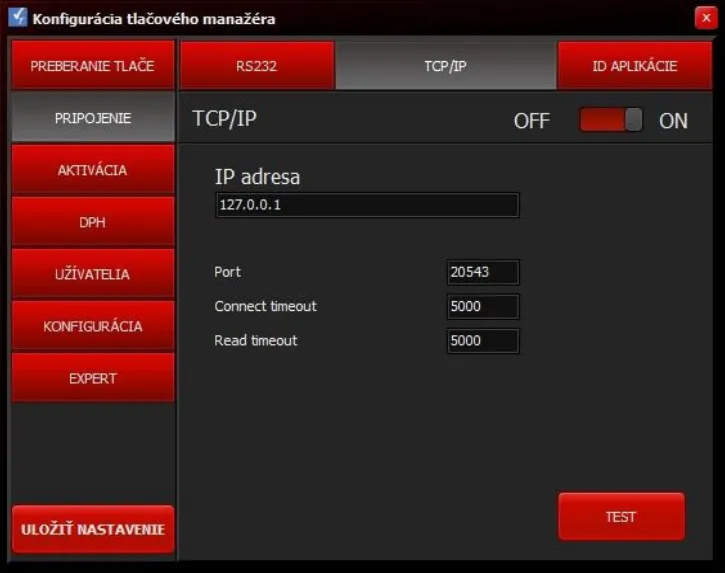
| Setting | Description |
|---|---|
| ON | Enable IP communication with FT4000 printer |
| IP address | IP address of FT4000 printer |
| Port | Printer communication port |
| Connect timeout | Maximum connection waiting time (in ms) |
| Read timeout | Maximum response waiting time (in ms) |
| TEST | Test communication with printer |
| Save settings | Save configuration |
eKasa Settings
Settings regarding eKasa in FT4000 printer via TM5000WIN are performed in configuration on ACTIVATION tab.
This tab is available only after successful connection to CHDU5000 in printer.
Contains two sub-tabs:
- Activation data
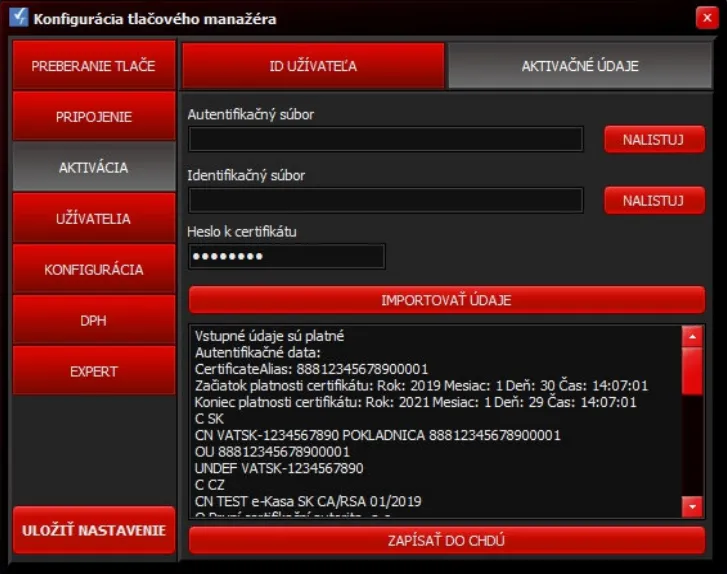
| Setting | Description |
|---|---|
| Browse (AUTH) | Select file with authentication data (AUTH file) |
| Browse (IDENT) | Select file with identification data (IDENT file) |
| Certificate password | Enter password for authentication and identification data |
| Import data | Load entrepreneur AUTH and IDENT data |
| Write to CHDU | Write data to CHDU5000 in printer |
- User ID
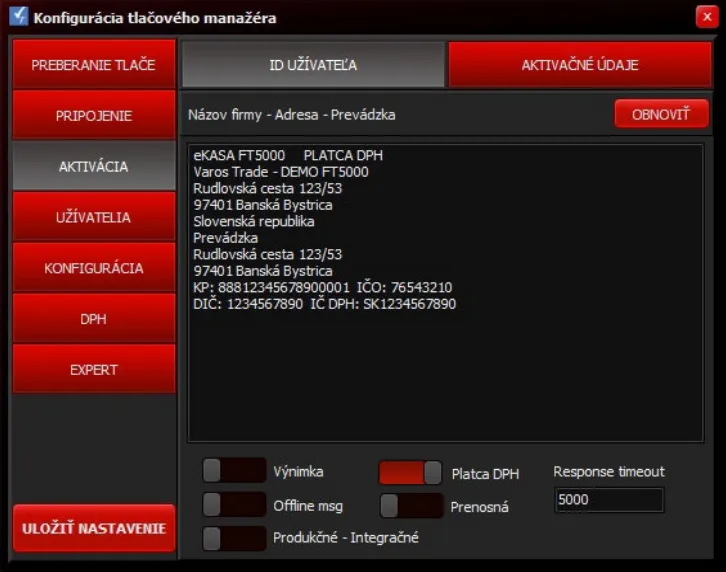
| Setting | Description |
|---|---|
| REFRESH | Read eKasa data from CHDU5000 |
| Exception | Set exception when sending documents to Financial Administration |
| Offline msg | Alert on OFFLINE document on monitor |
| Production | Switch between environment: OFF = production operation / ON = integration environment (development) |
| VAT payer | Information read from identification data: OFF = non-VAT payer / ON = VAT payer |
| Portable | Information read from identification data: OFF = stationary eKasa / ON = portable eKasa |
| Response timeout | Response waiting time from FS server (in ms). If no response, OFF-line document is printed |
Entrepreneur Authentication Data
Each eKasa must have valid entrepreneur authentication data (certificates) uploaded in protected data storage CHDU5000.
Data must be obtained from Financial Administration SR portal and then uploaded to printer.
Consists of two files:
AUTH– authentication data - ex:authdata_88820229302500001_20241127094130.xmlIDENT– identification data - ex:identitydata_88820229302500001_20241127094430.xml
⚠️ Without proper activation, document printing will not be possible.
Data Upload
Upload authentication data to VAROS eKasa via TM5000WIN through Configuration → ACTIVATION.
Before uploading data, check:
- Printer is connected and communication works
- You have prepared files with authentication and identification data
- You have prepared certificate password
In respective fields, select AUTH and IDENT files, enter certificate password and click Import data. This step imports data into TM5000WIN and verifies their correctness and displays basic entrepreneur information.
After successful import, click Write to CHDU to upload data to printer’s protected data storage.
⚠️ Warning: If password is incorrect or there are errors in data, import will end with error.
Data Reading
If you need to find out current eKasa settings in CHDU5000, you can use Configuration → ACTIVATION → User ID tab.
REFRESH button loads current data from CHDU5000 and displays them in table.
Exception Settings
Entrepreneur can request Financial Administration for permission to exempt from real-time document sending.
This exception is intended for cases when reliable internet connection cannot be ensured.
After exception approval by Financial Administration, this exception must also be set in eKasa printer.
Exception setting can be performed in Configuration → Activation → User ID tab.
By checking Exception option, exception mode is activated.
Production / Integration Environment
eKasa printer can communicate with Financial Administration in two modes:
- Production environment (live mode) – for regular operation
- Integration environment (test mode) – for development and testing
Mode is set in Configuration → Activation → User ID tab.
By switching Production - Integration option, integration environment (ON) or production environment (OFF) is selected.
Document Formatting
Print formatting parameter settings can be found in TM5000WIN configuration on CONFIGURATION tab.
This section contains three sub-tabs:
- Settings: Basic print and email client settings
- Header-Footer: Document header and footer text settings + printer control sequences
- Payment Types: Payment type names and rounding settings
Basic Settings
In Settings section, you can set:
- Print width - number of characters per document line
- Sum print width - number of characters for final amount
- QR code print method
- Star – Star printer mode
- Epson – Epson printer mode
- Native – fast print supported directly in printer
- Graph – slower print if printer doesn’t support native mode
This section also contains switch for enabling/disabling saving communication XML messages to print manager directory and email client settings.
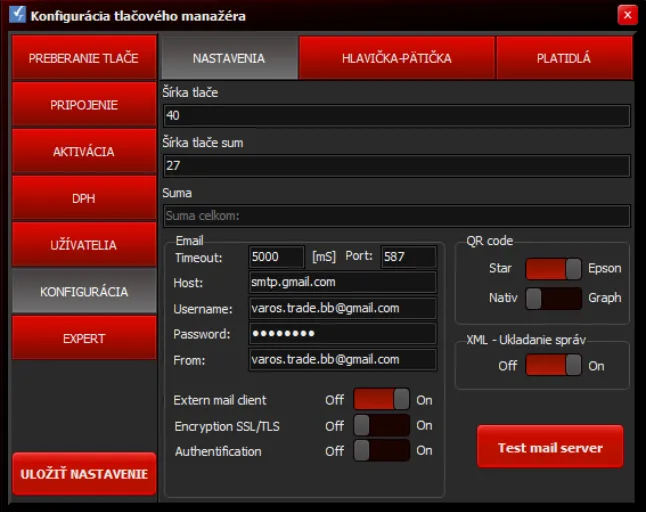
| Setting | Description |
|---|---|
| Print width | Number of characters per document line |
| Sum print width | Number of characters for document final amount |
| Sum | Text printed before document final amount |
| QR code | QR code print method |
| XML – Save messages | Save communication XML messages to print manager directory |
| Outgoing mail data settings for eKasa owner’s email client | |
| External mail client | When enabled, external client with parameters defined in SendEmail.bat file is used (default: curl.exe) |
| Test mail server | Testing correct email communication settings |
Header/Footer
In Header/Footer section, you can set:
- Supplementary header and footer text for documents
- Printer control sequences in HEX format
Using Add sequence button, printer control sequences can be inserted into document header or footer.
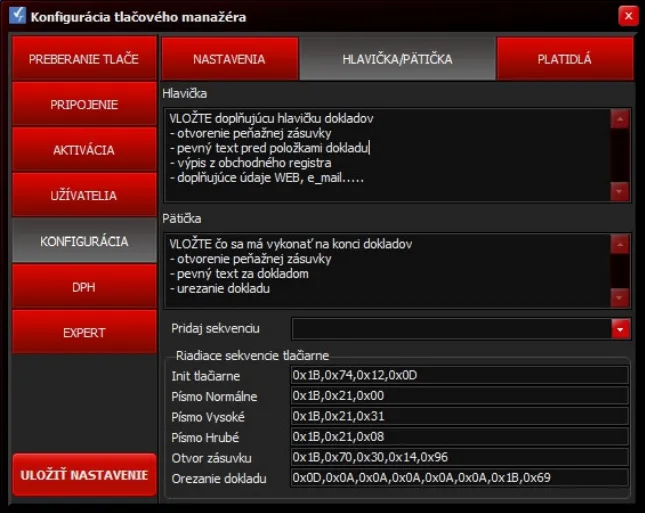
| Setting | Description |
|---|---|
| Header | Insert supplementary document header text and cash drawer opening commands |
| Footer | Insert text at document end, drawer opening commands and paper cutting |
| Add sequence | Command selection – double-click transfers to cursor position |
| Control sequences | Preset control sequences in HEX format |
Control Sequences
In Header/Footer section, printer control sequences can be changed, for example cash drawer opening command.
Preset control sequences in HEX format:
- Printer initialization
- Document cutting
- Drawer opening – ^Z
- Normal font – ^N
- Tall font – ^H
- Bold font – ^B
Payment Types
For setting payment type names and document rounding, use Payment Types section.
eKasa supports 8 payment types (P1 – P8).
Rounding
Setting automatic cent rounding for cash payment.
⚠️ Note: If sales application sends rounding command, automatic rounding is not performed only checks if value is in interval < -0.04 .. 0.04 > euro.
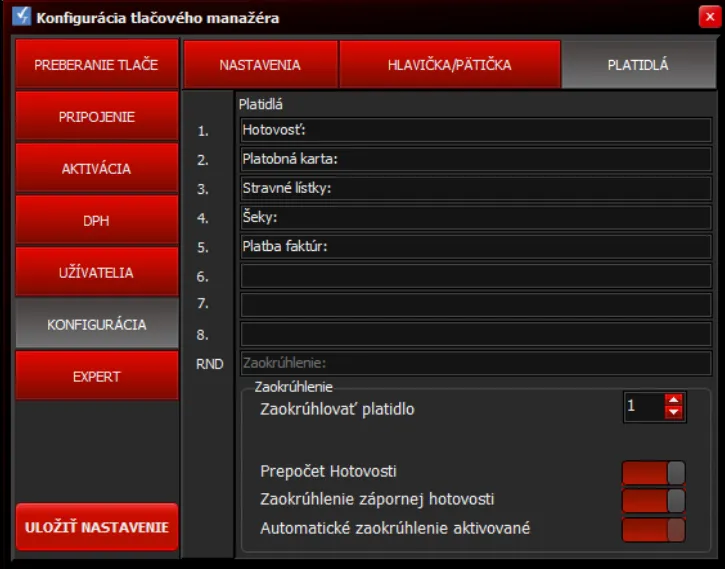
| Payment Type | Description |
|---|---|
| Payment 1 – P1 | First payment type (e.g. Cash) |
| Payment 2 – P2 | Second payment type (e.g. Card) |
| Payment 3 – 8 | Third - eighth payment type |
| RND | Text for cash cent rounding |
| Round payment | Payment number (1-8) to which cent adjustment applies |
| Cash recalculation | Print manager recalculates Cash payment and adds correct calculated value if incorrect from sales application |
| Negative cash rounding | Automatic rounding also applies to goods return |
| Automatic rounding activated | Indicator of automatic Cash payment rounding activation |
Email Documents
For setting email document sending via TM5000WIN, use Configuration → Settings → EMAIL tab.
On this tab, outgoing mail data of eKasa owner’s email client must be entered.
External mail client switch allows using external email client with parameters defined in SendEmail.bat file (default: curl.exe).
Test mail server button is used to test correct email communication settings.
Permissions
For setting user permissions, use USERS tab in TM5000WIN configuration.
TM5000WIN supports three users: Admin, Manager, User.
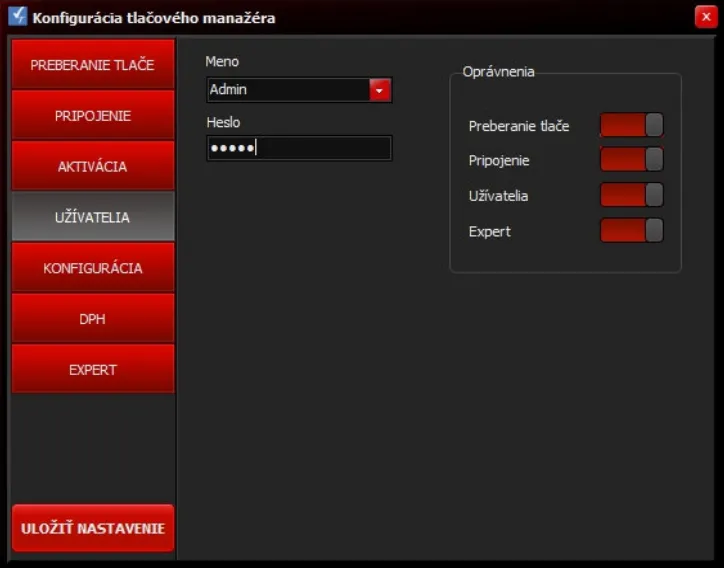
| Setting | Description |
|---|---|
| Name | User selection and login name change |
| Password | Password change for selected user |
| Permissions | Making individual tabs accessible: ON = tab accessible / OFF = tab not accessible |
| SAVE SETTINGS | Save configuration |
VAT Rates
For VAT rate settings, use VAT tab in TM5000WIN configuration.
Based on set VAT values, VAT breakdown is calculated on cash register documents.
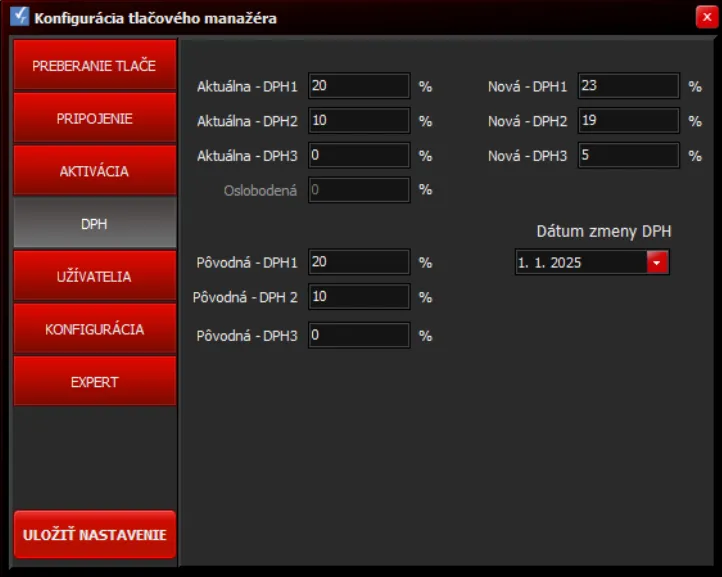
| Setting | Description |
|---|---|
| Current VAT1, VAT2, VAT3 | Tax rates in current period |
| Original VAT1, VAT2, VAT3 | Old taxes – will be used for goods return after VAT change (in 2024 identical to current) |
| New VAT1, VAT2, VAT3 | New VAT rates – automatically set to current levels with first document after change including given date |
| Exempt | Zero VAT rate |
| SAVE SETTINGS | Save configuration |
⚠️ Important: After VAT change, Current and New levels must be kept at same value.
Advanced Settings
For setting advanced print manager functions, use EXPERT tab in TM5000WIN configuration.
Switch left = OFF / right = ON.
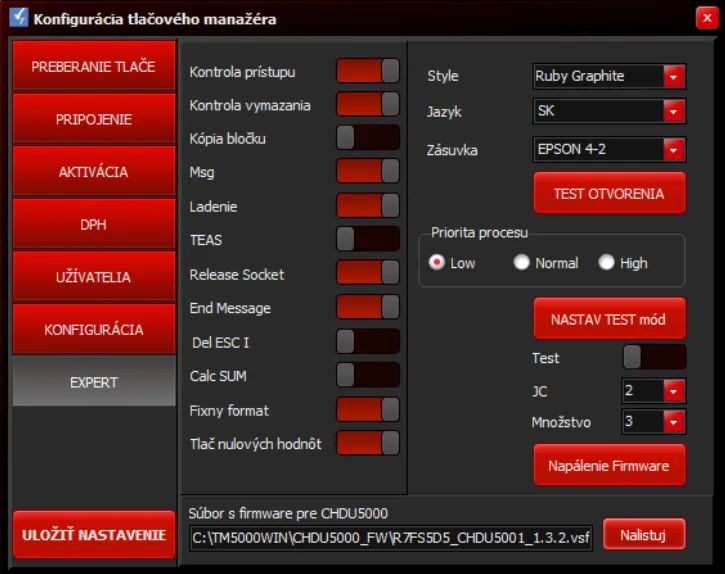
Popular functions in this section include:
Document Copy
For automatic printing of document copy after successful original printing.
Debugging
For creating debug file debug.txt with communication log details – for error detection.
Fixed Format
For fixed formatting of cash register document appearance.
TEST Mode
For setting test mode for operator training by clicking TEST MODE button.
TEST switch shows current state (ON/OFF).
In test mode, invalid documents are printed.
- Allowed: standard documents.
- Prohibited: invoice payment, deposit, withdrawal. Documents have text INVALID DOCUMENT every third line.
Firmware Flashing
For flashing internal CHDU5000 program in printer.
Before flashing, file with new firmware must be selected.
More information in document FT4000 eKasa firmware update.
Cash Drawer
For selecting cash drawer type and testing its opening using TEST OPENING button.
Language Settings
For selecting print manager language version (Slovak, English).
Decimal Places Settings
For setting number of decimal places for unit price and quantity.
Other Functions
| Setting | Description |
|---|---|
| Access check | Windows permissions check for access to print manager folder |
| Delete check | Additional check for correct input file deletion after processing |
| Msg | Display alert on monitor in case of printing or sending problem |
| TEAS | Setting receipt of formatted documents from TEAS system |
| Release Socket | Release IP or RS232 communication when no longer needed. Recommended for IP – allows other user to connect |
| End Message | Display confirmation screen when requesting application termination |
Del <ESC>I | Delete <ESC>I sequence sent in document body (interrupts document on receipt) |
| Calc SUM | Calculate document final price – ignores amount from master application |
| Print zero values | Print lines with zero values on closures |
| Style | Select print manager color display |
| Process priority | Set application processing priority in Windows system |